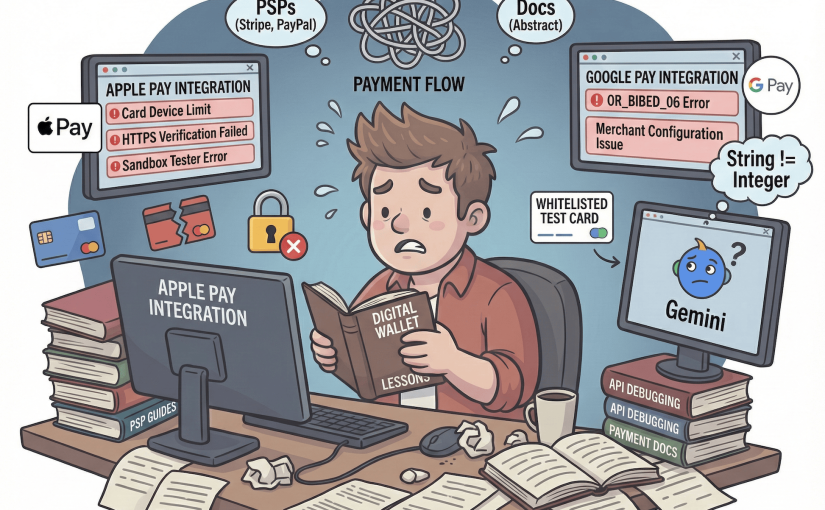
Integrating digital wallets like Apple Pay and Google Pay can significantly enhance checkout experiences, but the integration process—especially for developers—comes with its own set of challenges. This short sharing summarizes key lessons learned and practical tips that can save you hours of troubleshooting.
Integrating Apple Pay: Complex but Essential
Directly integrating Apple Pay can be a complex and sometimes frustrating process. While the official Apple Pay documentation is comprehensive, it’s often too abstract for real-world implementation. A more practical approach is to integrate Apple Pay through a Payment Service Provider (PSP) such as PayPal, Stripe, or Adyen, which simplifies much of the workflow.
Sandbox Testing and Developer Access
Apple Pay testing has a high entry barrier:
- You must enroll in the Apple Developer Program (paid subscription).
- Only then can you create a sandbox tester account through App Store Connect.
- You must log in with that tester account on a physical device to simulate Apple Pay.
However, even after setup, adding test cards from the Apple Pay Sandbox Testing page often fails. Common errors include:
- “Card Device Limit” — the card has already been added to too many devices.
- Generic Visa failures — card addition fails without reason.
In practice, you’ll need to try all available test cards one by one until one finally works.
HTTPS and Domain Verification Issues
Testing Apple Pay on the web introduces another layer of complexity. Your test site must be hosted on HTTPS with a verified domain. Unfortunately, Apple’s domain verification flow is unstable at times, and even when using a PSP, verification can fail without clear reasons. This unpredictability makes end-to-end testing frustratingly inconsistent.
Debugging Apple Pay Integration
When the Apple Pay payment sheet appears, browser DevTools become inaccessible. You also can’t use alert() for diagnostics—it will hang the payment sheet. The workaround is to log everything to the console and inspect it after the session ends. Having detailed console output is your best friend for debugging authorization responses and payment tokens.
Integrating Google Pay: Simpler Setup, Different Challenges
Compared to Apple Pay, Google Pay is far more developer-friendly in setup. You can test without a paid account, and the sandbox setup is straightforward.
To start testing, simply join the Google Test Card Suite group. Once your Google account is whitelisted, Google Pay automatically preloads a set of test cards—no manual entry required.
Troubleshooting Google Pay Errors
Google Pay’s error handling, however, can be extremely opaque. Most runtime failures return the same generic message:
“The merchant is having trouble accepting your payment right now…”
This error hides several potential issues, from invalid merchant IDs to malformed transaction data. When working with Google Pay via a PSP, you may skip merchant account setup entirely, but this can still trigger integration errors if the payment request is misconfigured.
The most puzzling example I encountered is error code OR_BIBED_06. Documentation and even Google Gemini describe it vaguely as a “merchant configuration issue.” In reality, the root cause in my case was a data type mismatch:
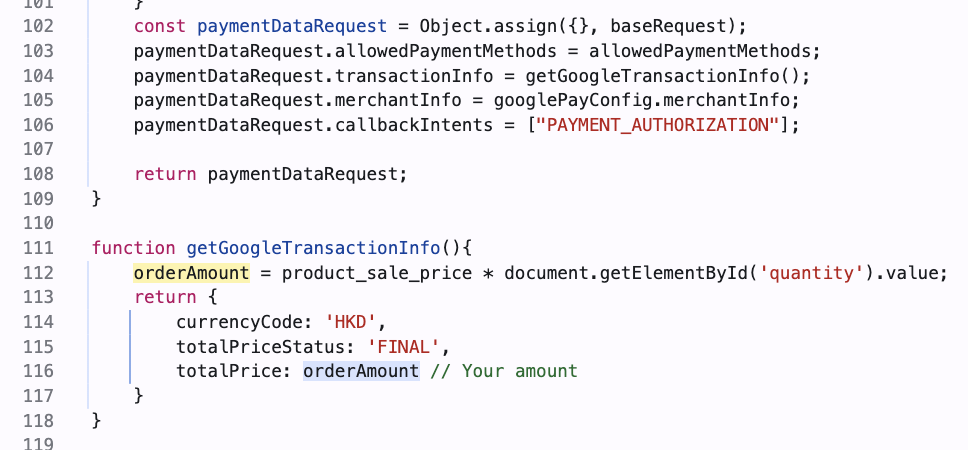
totalPrice has to be a StringGoogle Pay expected totalPrice as a string, not an integer. Converting it fixed the issue instantly—a reminder that even small data inconsistencies can silently break the payment flow.
Key Technical Takeaways
- Integrate through PSPs like Stripe or PayPal to simplify merchant validation and cryptography.
- Always enable HTTPS and verify your domain early in the setup process.
- Automate error logging for Apple Pay since debugging during the sheet display is nearly impossible.
- Join Google’s Test Card Suite for frictionless sandbox testing. (Nowadays seems to even skip this step)
- Treat Google Pay error codes skeptically—test for data and property type mismatches first.
Apple Pay and Google Pay both have great APIs, but their integration experience varies widely. Expect to spend more time debugging Apple’s environment setup and more time deciphering Google’s cryptic error responses. Once you’ve conquered both, your checkout will be faster, more secure, and far better optimized for modern users.